
Work Calendars
The Work Calendars screen displays all calendars configured in Dashlytics. Work Calendars define the working days, hours, breaks, and holidays used by time-based Metrics to calculate durations accurately.
Access this screen via Jira settings → Marketplace apps, then Calendar under Dashlytics in the sidebar.
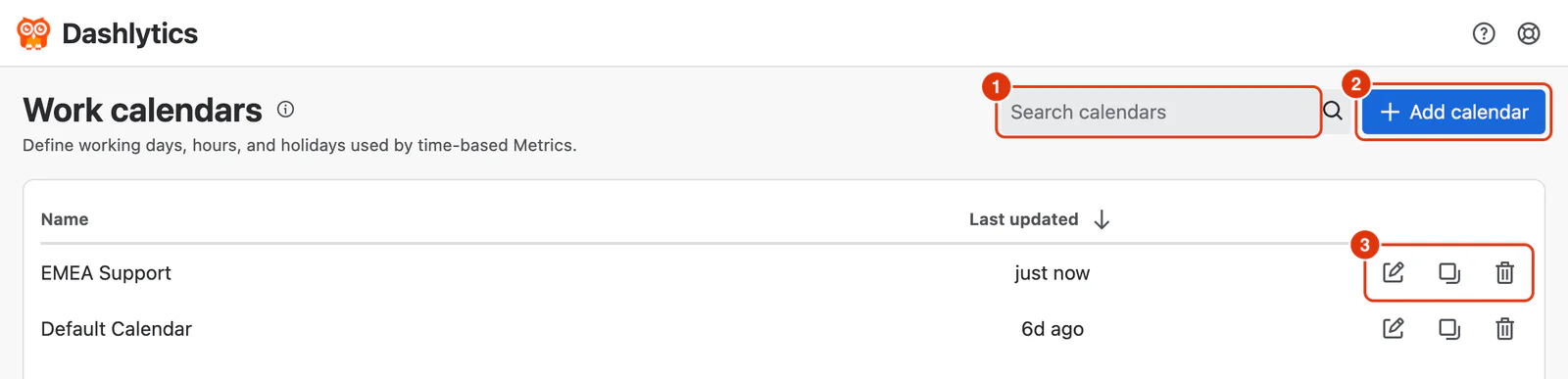
Calendar List
All existing calendars are displayed in a table with two columns:
Name — the label given to the calendar. Shown in calendar pickers when configuring time-based Metrics.
Last updated — when the calendar was last changed. The list is sorted by this column.
Search
Use the Search calendars field (1) to filter the list by calendar name.
Actions
Each calendar in the list ends with three action icons:

Edit (1, pencil icon) — opens the calendar in the Edit calendar dialog. All fields can be updated; click Save changes when done. Changes apply immediately to any Metric using this calendar. See Add / Edit Calendar for field details.
Duplicate (2, copy icon) — creates a copy of the calendar, named after the original with "--COPY" added. Useful when setting up calendars for teams with similar but slightly different schedules.
Delete (3, trash icon) — deletes the calendar after a confirmation. This cannot be undone; calendars currently in use by a Metric should be reassigned first.
Adding a Calendar
Click Add calendar (2) in the top right to open the Add calendar dialog. See Add / Edit Calendar for field details.
For guidance on when and why to set up Work Calendars, see Work Calendar Setup in the Settings & Administration section.