
Home
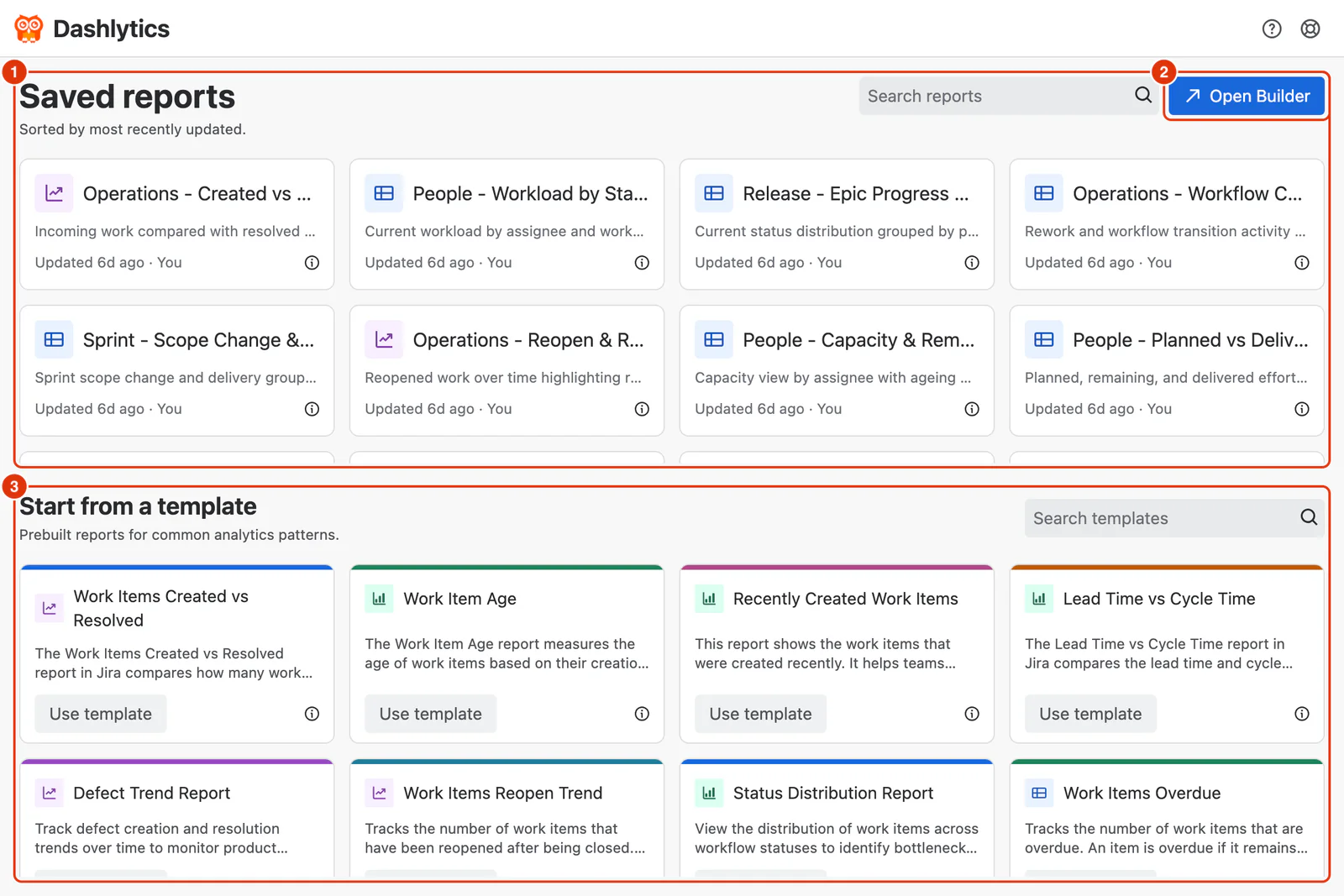
The Home screen is the first screen you see when opening Dashlytics. To open it, go to Apps → Dashlytics in the Jira left sidebar, then click Home in the Dashlytics navigation. It is divided into two sections — Saved Reports and Templates.
Saved Reports
The Saved reports section (1) displays all reports that have been saved by any user in the Jira instance, sorted by most recently updated.
Search reports — search field in the top right of the Saved Reports section. Filters the report list by name as you type.
Open Builder (2) — button in the top right. Opens the Report Builder, picking up your previous session, or a blank report if there is none.
Report Cards
Each saved report is displayed as a card.
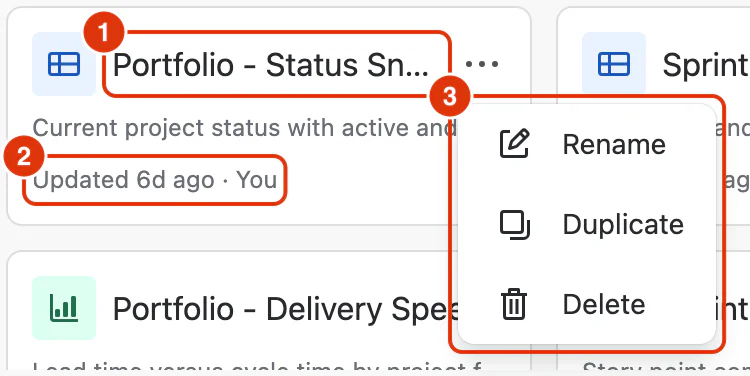
- Report name (1) — the name given when the report was saved, with its description below.
- Last updated and Owner (2) — when the report was last modified, and who by, shown as their display name or "You" if it was the current user.
- Info icon — hovering it shows the full description, the created by user, the created on date, and the last updated date and time.
Actions menu (3) — hovering over a report card reveals a ⋯ button with:
- Rename — changes the report's name and description.
- Duplicate — creates a copy of the report and opens it in the Report Builder.
- Delete — permanently deletes the report. This also removes it from any Dashboard gadgets that reference it.
Opening a report — click anywhere on the report card to open it in the Report Builder.
Empty State
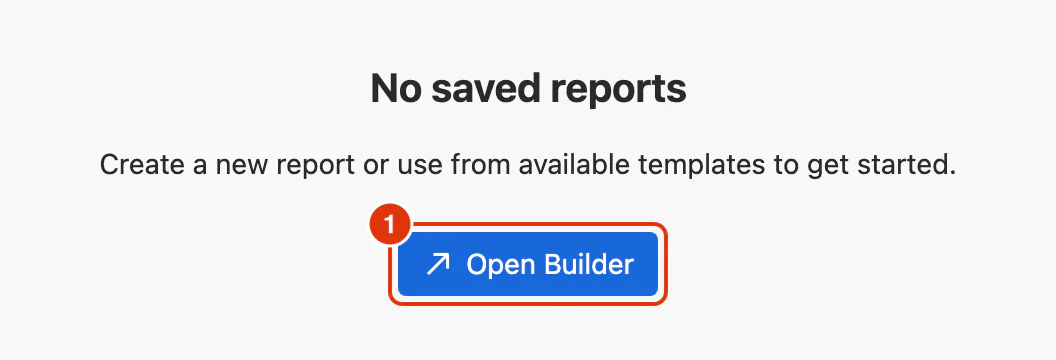
When no reports have been saved yet, the Saved Reports section shows an empty state with an Open Builder button (1) to get started.
Templates
The Start from a template section displays prebuilt reports for common analytics patterns. Templates are available to all users and cannot be edited or deleted.
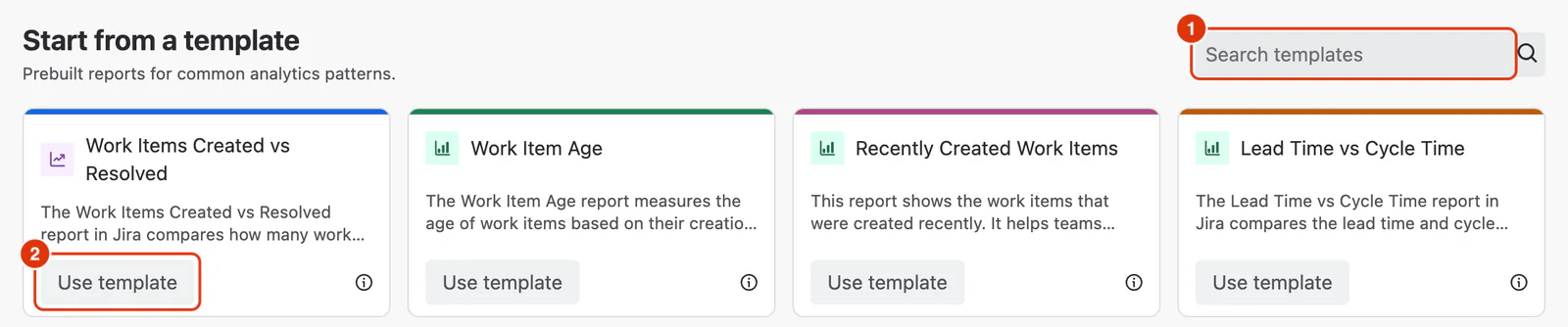
Search templates (1) — search field in the top right of the Templates section. Filters the template list by name.
Each template card shows:
- Template name — the name of the template.
- Description — a brief explanation of what the template measures.
- Use template (2) — loads the template configuration into the Report Builder with a hardcoded data source, ready to customise and save as your own report.
For guidance on using templates, see Using Templates in the Feature Guides section.
For guidance on managing saved reports, see Managing Reports in the Feature Guides section.