Work Items Reopened by Month
This report tracks the number of previously closed work items that were reopened each month. It helps teams identify rework patterns, measure delivery stability, and spot periods where work is consistently re-entering the workflow after being marked as done.
Start a report
- Go to Apps → Dashlytics in the Jira left sidebar, then click Home.
- Click Open Builder, then New in the toolbar, to start from a blank report.
- In the Data Source section, enter a JQL query to scope the work items — for example:
project is not EMPTY. Click Search. - Click the Configure button to open the Configure report dialog.
Lay out the rows
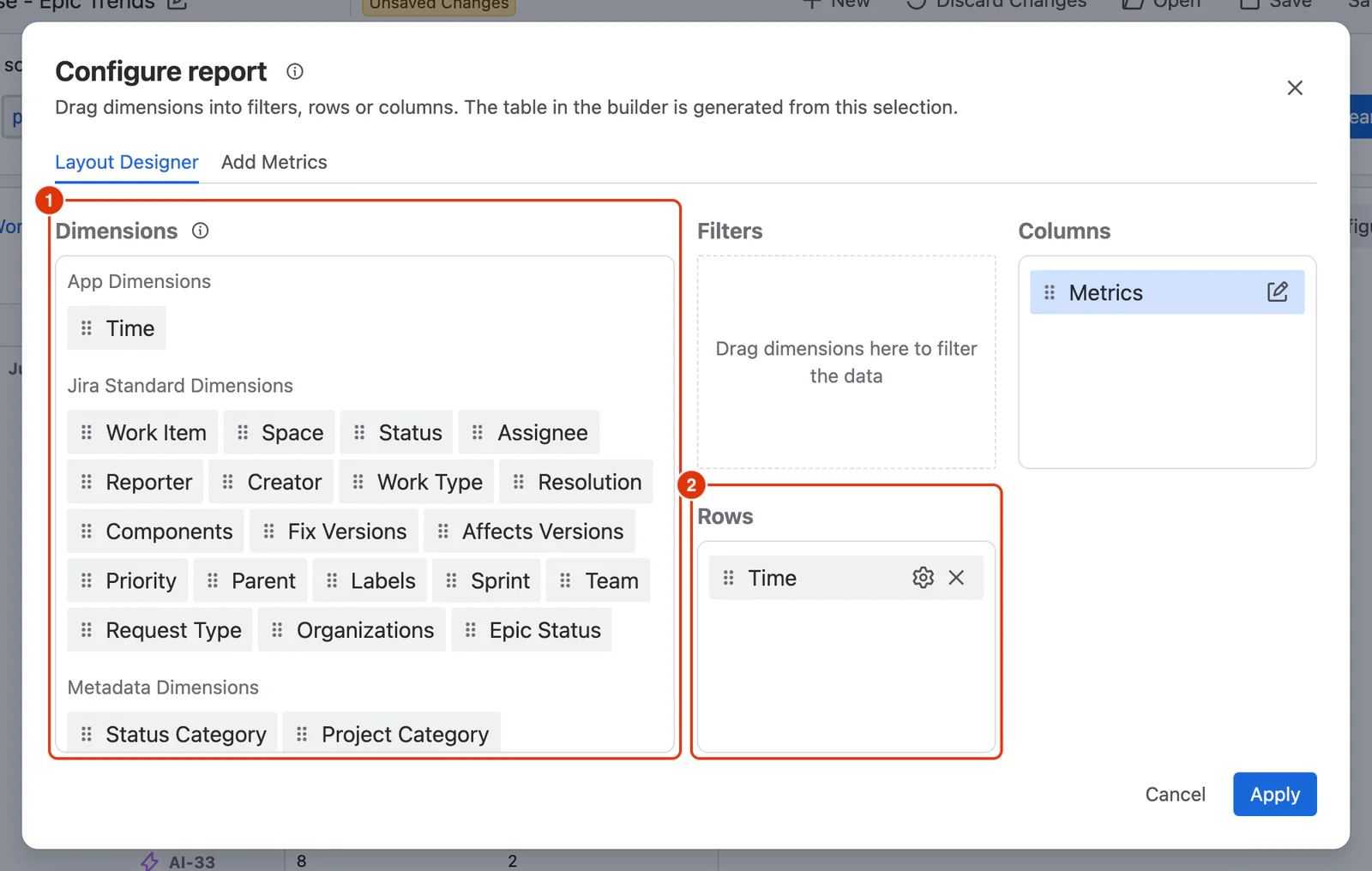
- In the Layout Designer tab, drag Time from the Dimensions list (1) into the Rows zone (2).
- Click the ⚙ icon on the Time chip to open its configuration. Under Time Units, select Month. Click Apply.
- Optionally, drag Space, Assignee or Work Type into the Filters zone below Columns to allow interactive filtering on the report.
Add the Metric
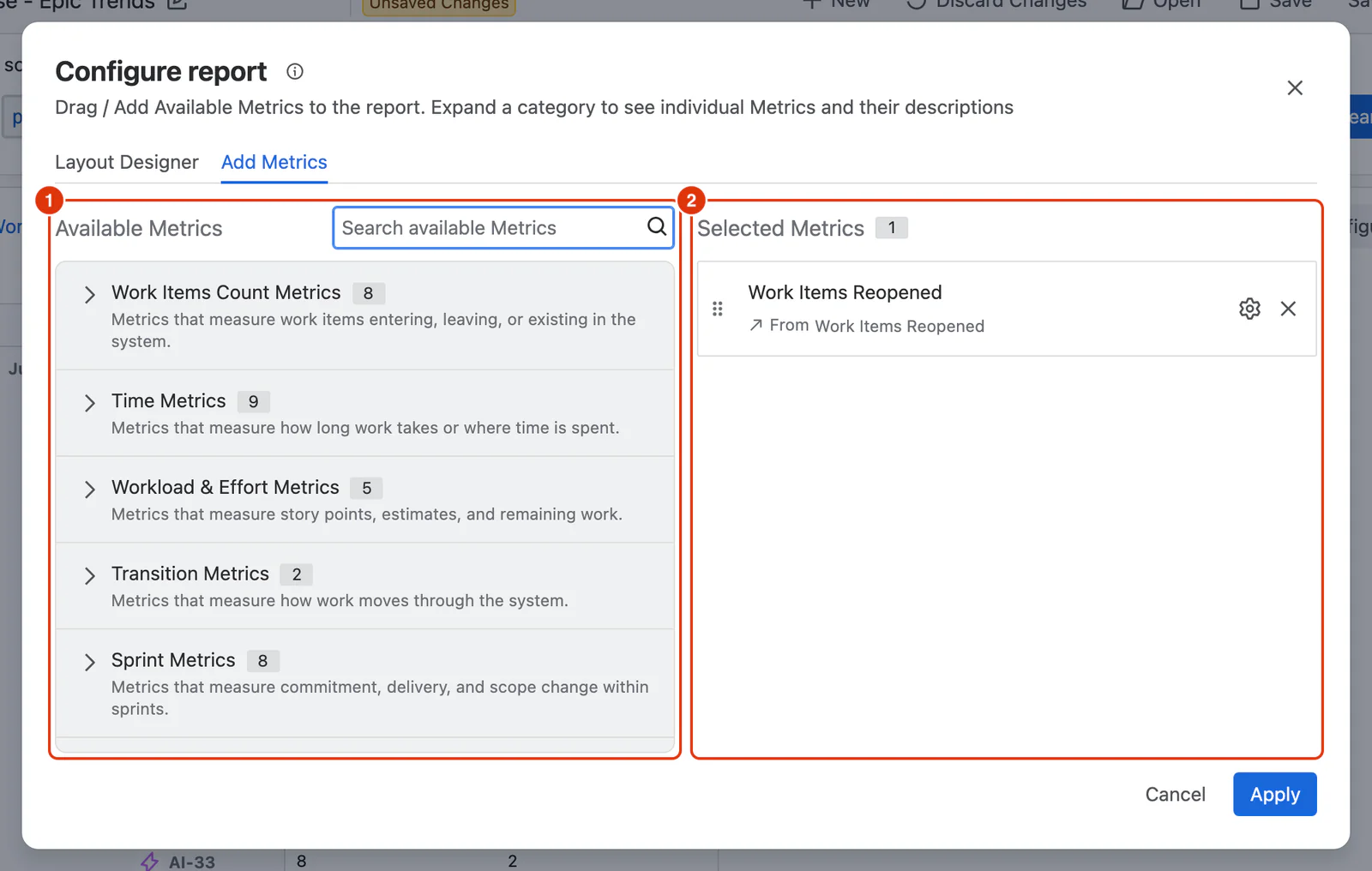
- Go to the Add Metrics tab. In Available Metrics (1), expand Work Items Count Metrics and click + Add on Work Items Reopened. It appears under Selected Metrics (2).
- No Metric configuration is required — Work Items Reopened works out of the box using your Lifecycle Mapping.
- Click Apply to close the dialog and render the report.
- Use the filter chips above the report table to narrow results by space, assignee or work type as needed.
- Click Save as in the toolbar, enter a report name, and click Save report.
Note
Prerequisite: Work Items Reopened relies on Lifecycle Mapping to identify which statuses qualify as Closed. If results look unexpected, verify your Lifecycle Mapping under Jira Settings → Marketplace Apps → Dashlytics → App Settings.
Result
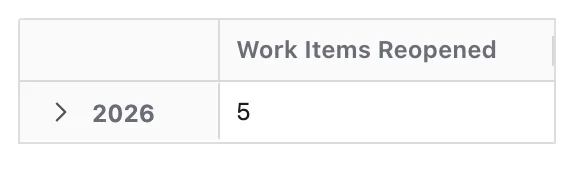
Each year groups the months beneath it. Expand a year to read the count of work items reopened in each month; a month with none shows a dash, so a workflow with no rework produces an empty report, which is itself the answer.