
Data Source
The Data Source section is located below the toolbar in the Report Builder. It defines which Jira work items the report is built from.

JQL
Enter a JQL (Jira Query Language) query in the JQL field (1) to define the scope of work items for the report. The JQL field supports autocomplete to help you construct valid queries.
The JQL defines the universe of work items the report works with — dimensions and Metrics then slice and calculate across this set.
Example:
Tip: Start with a broad query and refine it using the Configure dialog's Filters zone rather than hardcoding too many constraints in the JQL. This gives users more flexibility to interact with filter chips on the rendered report.
Search
Click Search (2) to execute the JQL query and fetch the matching work items. The report does not update until Search is clicked after making changes to the JQL.
If the JQL is invalid, an error message is displayed below the field.
Work Items Count
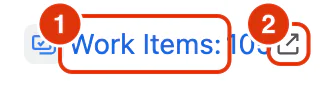
Once the search runs, the total number of matching work items is displayed next to the Work Items label (1).
Click the external link icon (2) next to the count to open the full list of matching work items in Jira's work item navigator. This is useful for verifying the data set before configuring the report.
For a step-by-step guide to setting up the data source as part of building a report, see Building Reports in the Feature Guides section.