
Dimension Configuration
When a dimension is placed in a zone in the Layout Designer, it can be configured on its own by clicking the Configure Dimension (⚙) icon on its chip. The panel opens beside the Layout Designer.
There are two of these panels, and which one opens depends only on the dimension: the Time dimension has its own, and every other dimension shares a second one. This page is about telling them apart; each panel's options are described on its own page.
The Time panel
Time is the only dimension whose values are a range rather than a list, so its panel adds a Time Range section (1) — the period the report covers and the units it is grouped by. Nothing else in the app produces this section.
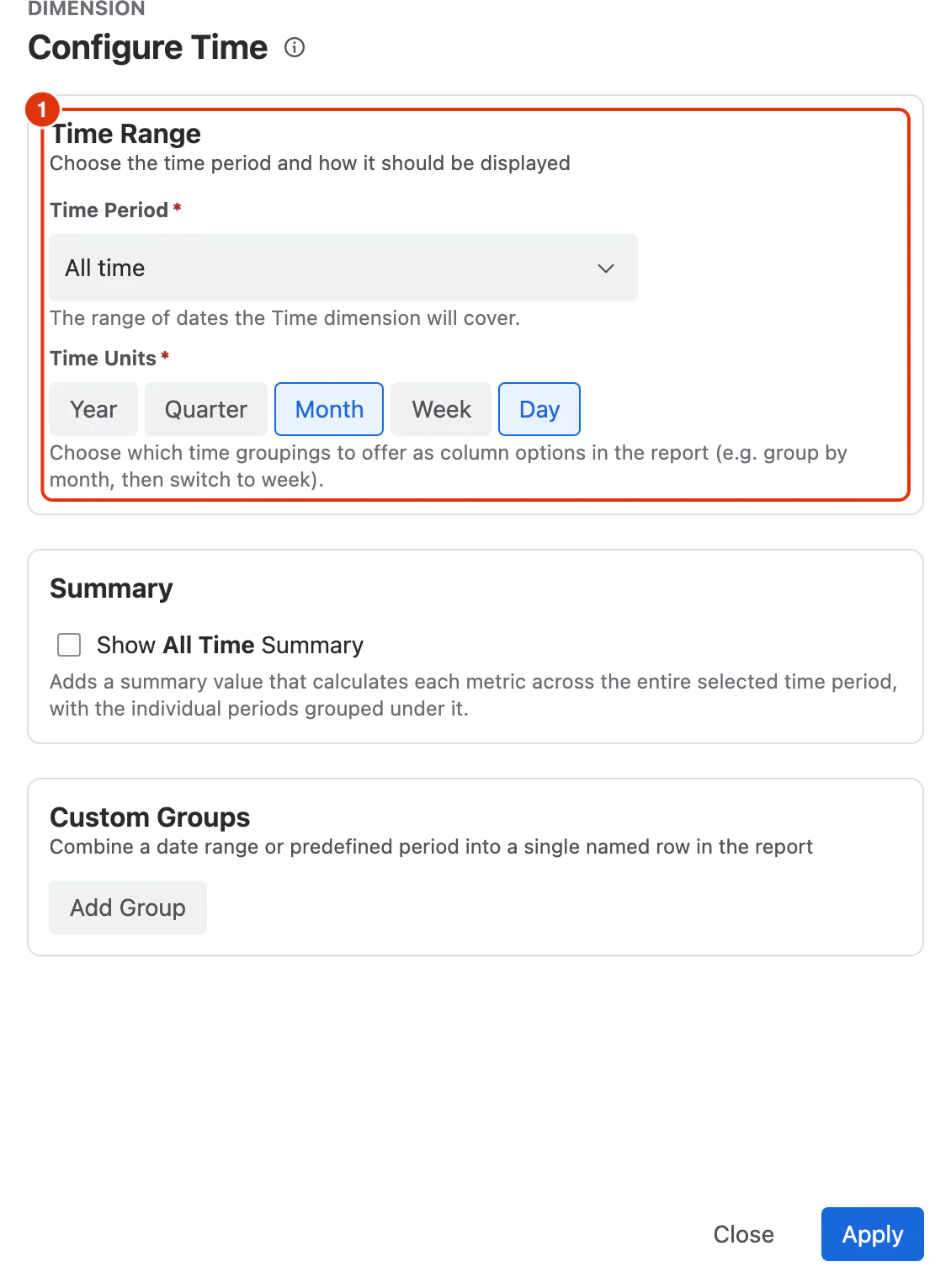
See Time Dimension Configuration for what each option does.
The categorical panel
Every other dimension — Space, Assignee, Status, Work Type, a custom field — opens the same, shorter panel. It has no Time Range, because its values are a list of things rather than a stretch of time.
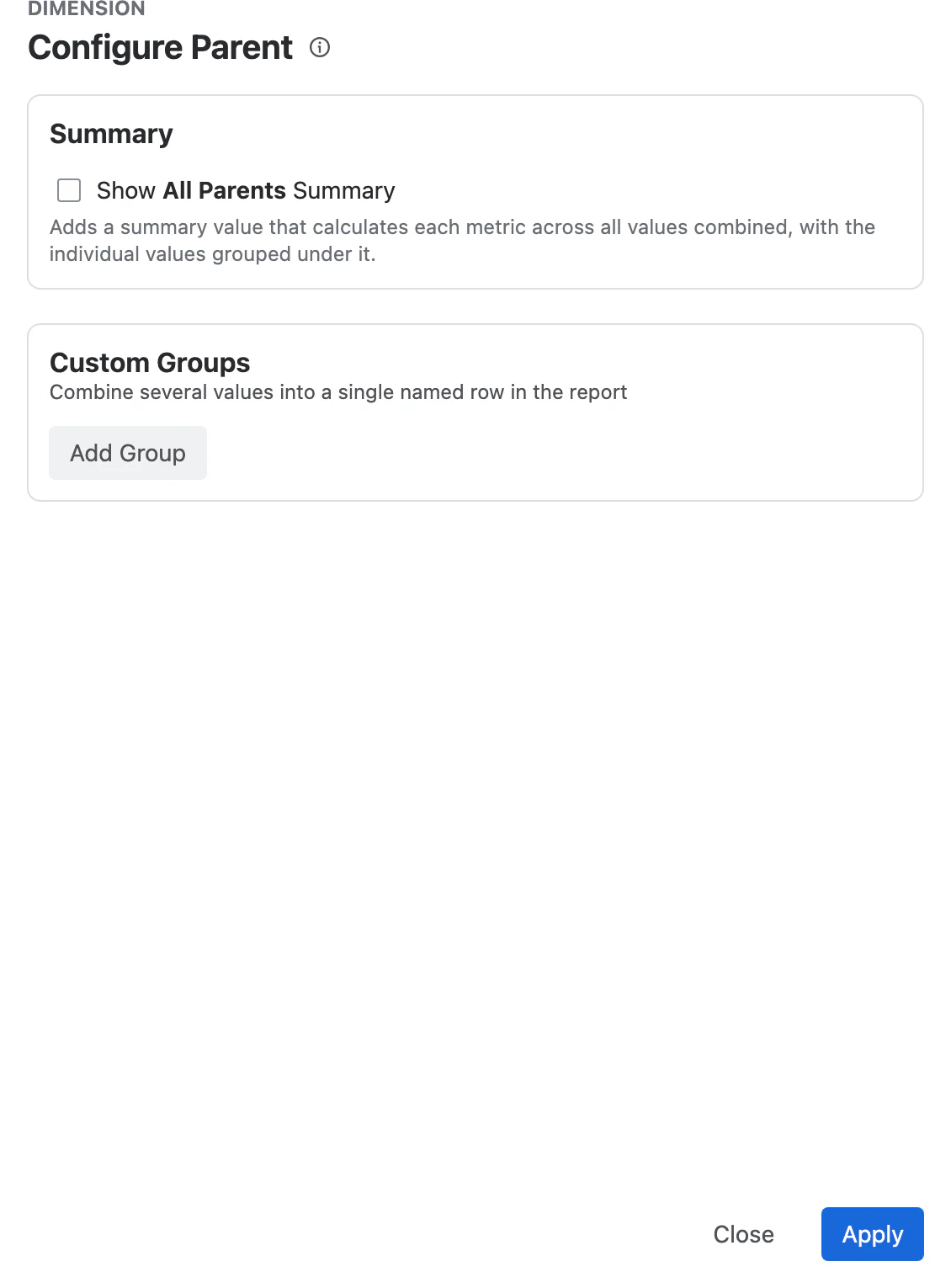
See Categorical Dimension Configuration for what each option does.
What both panels share
Summary and Custom Groups appear on both, and behave the same way in each: a summary adds an aggregated row across the dimension's values, and a custom group collects several values under one name.
Shared Configurations Across Zones
When the same dimension appears in more than one zone (e.g. in both Filters and Rows), all instances share the same configuration. Changing the configuration in one zone automatically applies to the other instance as well.
For a conceptual overview of dimension configuration and how it affects the report, see Configuring a Report in the Feature Guides section.