
Downloading Debug Information
When a Dashlytics report cannot be completed, a debug ZIP can help Dashlytics Support investigate the problem. Download it only when you are troubleshooting a report or when Support asks for it.
Before You Download
Reduce the report to the smallest set of work items and configuration that still reproduces the problem. This makes the file easier to investigate and limits the information you share.
The debug ZIP can contain report configuration, Jira work item data, and other report lookup data. Review the contents before sharing it.
Download Debug Information
You can download debug information in either of these situations:
- From the Report Builder — click the Download debug data bug icon in the row of action icons directly above the report filters.
- From an error message — if Dashlytics cannot complete a report, click Download Debug Info in the error message. The same message also offers a Contact Support button for raising the request itself.
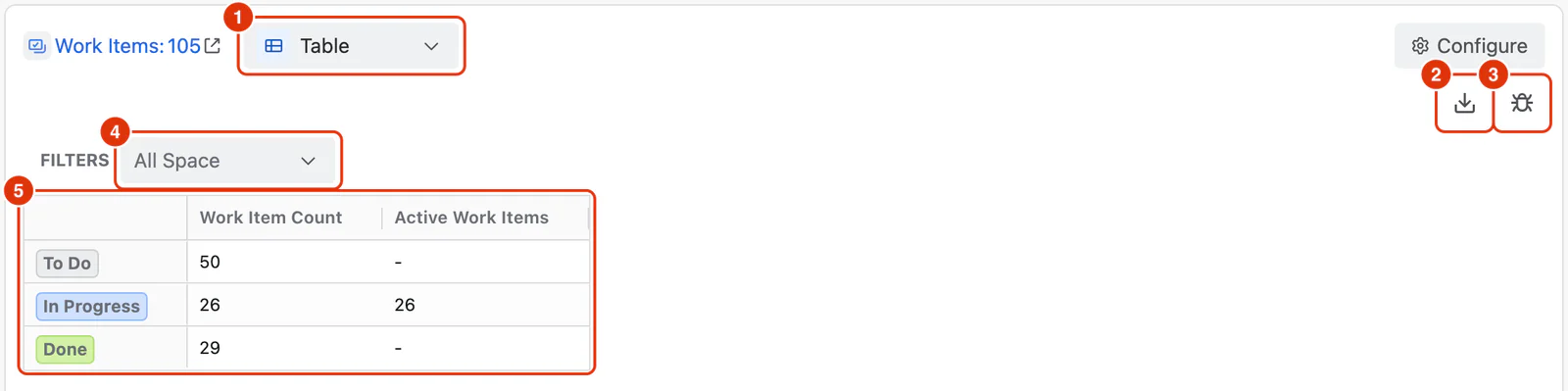
The Export icon (2) and the Download debug data icon (3) sit together above the report's filters.
The Preparing debug data dialog opens and Dashlytics builds a fresh ZIP file, showing its progress as a percentage. Because the archive is built from a fresh fetch of the report's work items, this can take a while on large reports — if Jira throttles the requests, the dialog shows This may take a moment.
Click Cancel to stop the download. If preparation fails, the dialog shows Download failed with the reason; click Retry to try again, or Close to dismiss it.
The downloaded file is named debug-data-<date-and-time>.zip.
What the ZIP Contains
The ZIP contains JSON files that let Support recreate the report context without asking you to rebuild it manually. Depending on the report and where the download was started, this includes:
- report configuration and the JQL query
- the Jira fields, calendar settings, and lookup data used by the report
- the work item data retrieved for the report
- error details, when the ZIP was downloaded from an error message
The files are intended for troubleshooting. They are not a report export format.
Share Securely
- Open the ZIP and review the JSON files before sharing.
- Confirm that you are allowed to share the included work item and configuration data.
- Attach the ZIP only to a Dashlytics Support request or send it through another approved support channel.
- Describe the steps that caused the problem and include the report name, expected result, and actual result.
Do not post debug ZIP files in public channels or share them with people who are not authorised to access the report data.
For normal report downloads, see Exporting Reports.