
Report Toolbar
The Report Toolbar sits at the top of the Report Builder, beside the report name. It contains five actions for managing the current report session.

New
New (1) clears the current workspace and returns the builder to a blank report. The data source, dimensions, and Metrics are all cleared.
New affects only the current session. Saved reports are not modified or deleted.
Discard Changes
Discard Changes (2) returns the open report to its last saved version, undoing every change made since it was opened or last saved.
The action is only available while the report has unsaved changes — an Unsaved Changes label appears next to the report name whenever it does.
Open
Open (3) opens the Open report dialog, which lists all saved reports available to load into the builder.
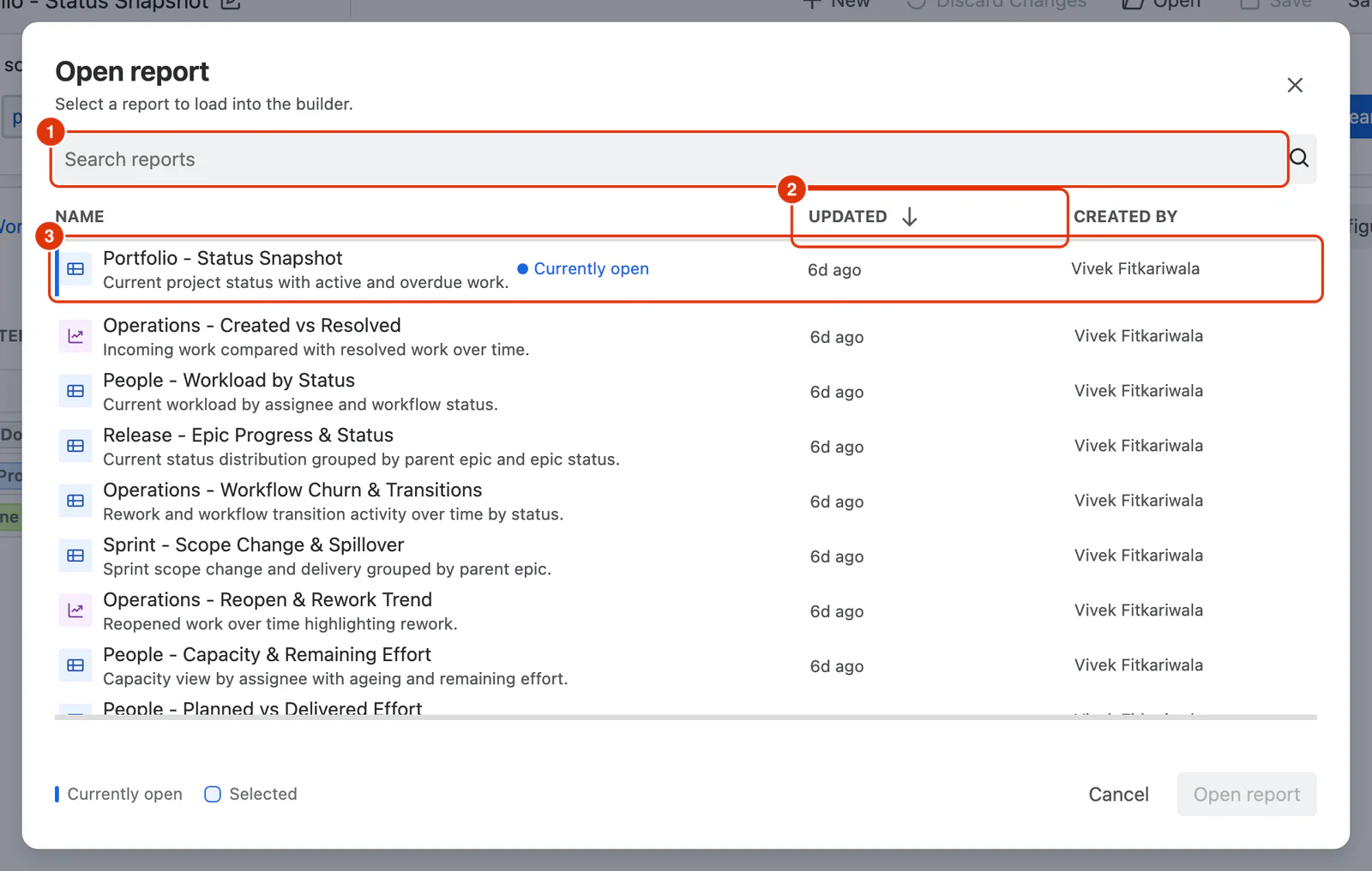
Open Report Dialog
Search reports (1) filters the list by name. Reports are listed sorted by most recently Updated (2), showing:
- Name — the name of the saved report, with its description below it.
- Updated — how long ago the report was last modified.
- Created by — the user who created the report.
The currently open report is pinned at the top of the list with a Currently open label (3). Select a report and click Open report to load it into the builder. The currently open report cannot be selected again.
Empty State
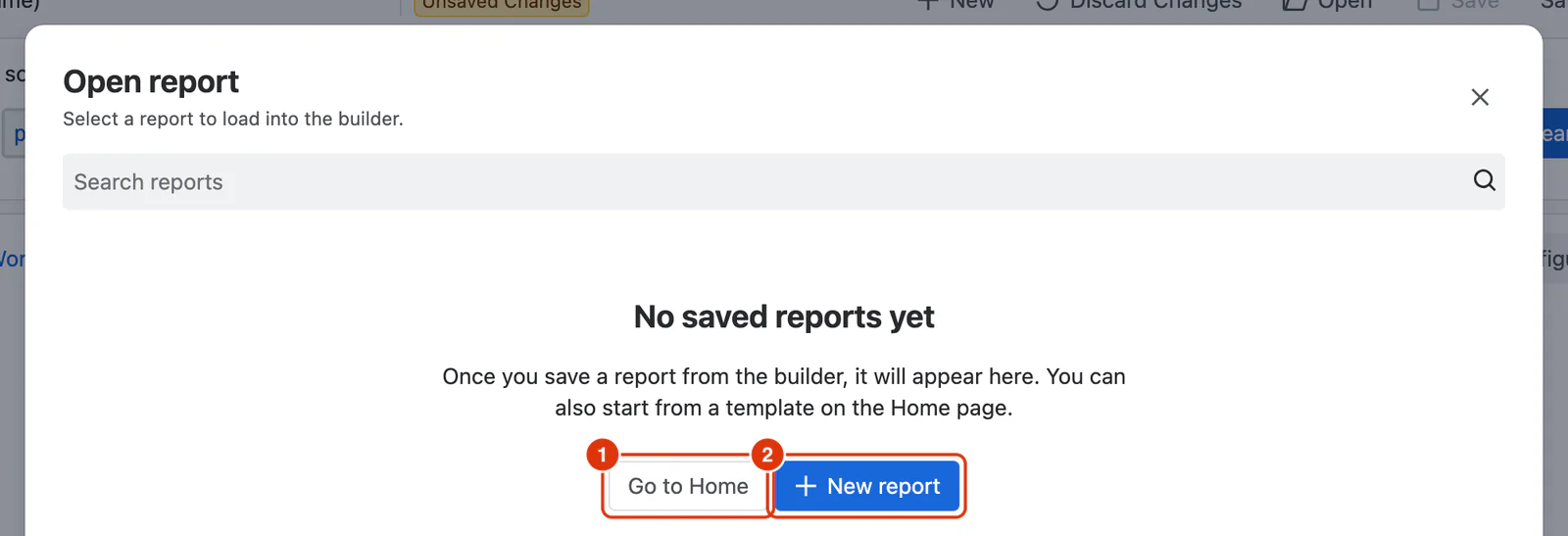
When no reports have been saved yet, the dialog shows an empty state with two options:
- Go to Home (1) — navigates to the Home screen where templates are available.
- New report (2) — closes the dialog and resets the builder to a blank report.
Save
Save (4) saves the current report configuration, overwriting the previously saved version. The report name and all settings are updated in place.
If the current report has never been saved, Save stays disabled — use Save as instead.
Save as
Save as (5) opens the Save report as dialog to save the current configuration as a new report.
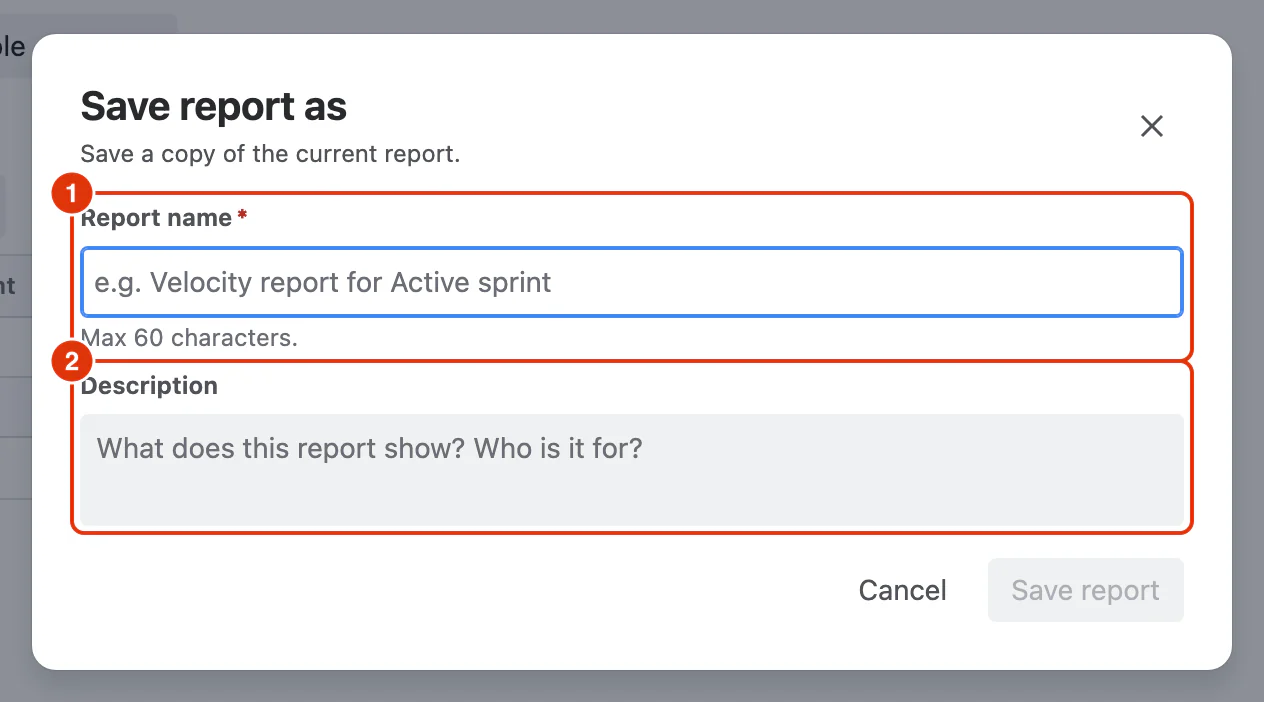
Save Report As Dialog
Report name (required) (1) — the name for the new report. Must be unique across all saved reports. Maximum 60 characters.
Description (optional) (2) — a brief note about what the report shows and who it is for. Displayed as a tooltip when hovering over the report card on the Home screen.
Save report — creates the new report and loads it as the currently open report in the builder.
For a step-by-step guide to saving and managing reports, see Building Reports and Managing Reports in the Feature Guides section.