
Add Metrics
The Add Metrics tab is the second tab in the Configure Report dialog. It is where you select and configure the Metrics that calculate values in your report.
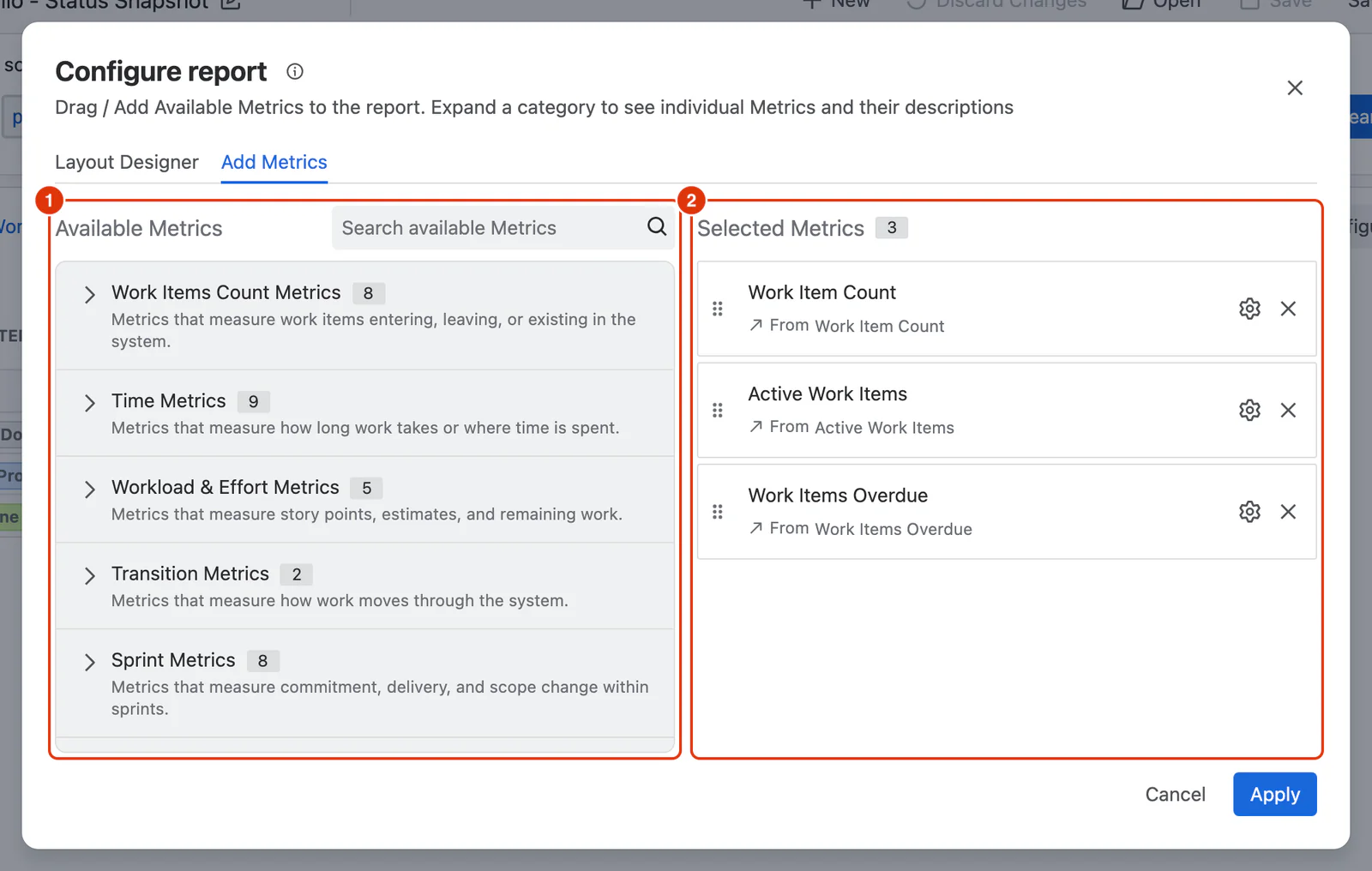
Available Metrics
The Available Metrics panel (1) lists all Metrics organised into categories. Expand a category to see individual Metrics with their names and descriptions.
Search Metrics — use the search field to filter Metrics by name across all categories.
+ Add — click to add a Metric to the Selected Metrics panel. A Metric can be added more than once — each instance can have a different configuration, allowing you to compare variations of the same metric side by side.
Metric Categories
- Work Items Count Metrics — measure work items entering, leaving, or existing in the system.
- Sprint Metrics — measure commitment, delivery, and scope change within sprints.
- Sprint Story Points Metrics — effort-based sprint metrics using story points.
- Time Metrics — measure flow duration and bottlenecks (e.g. Cycle Time, Lead Time, Time in Status).
- Workload & Effort Metrics — measure logged effort and estimates.
- Transition Metrics — measure workflow movement and handoffs.
- Generic Metrics — flexible, field-driven Metrics for custom analysis.
See Metrics in the Reference section for a full overview of all Metric types.
Selected Metrics
The Selected Metrics panel (2) shows all Metrics currently added to the report.
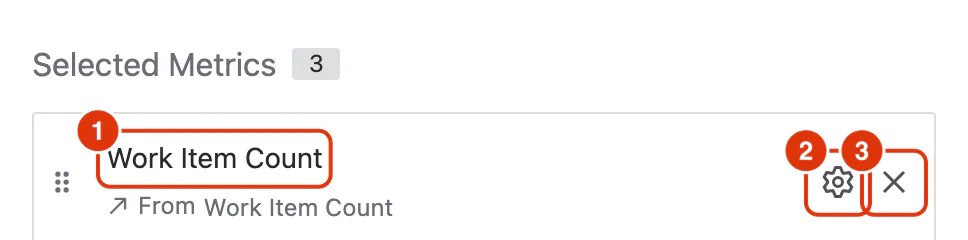
Each entry (1) displays:
- Metric name — the name of the Metric.
- Description — a brief description of what the Metric calculates.
- Source category — the category the Metric belongs to (shown as a tag below the description).
Actions
Configure (2, ⚙ icon) — opens the Metric Configuration panel for that instance. See Metric Configuration for full details of all configuration options.
Remove (3, ✕ icon) — removes the Metric instance from the report. Does not affect other instances of the same Metric.
Reorder — drag a Metric to a different position within the Selected Metrics panel to change the column order in the report.
Adding the Same Metric Multiple Times
A Metric can be added more than once with different configurations. For example, adding Work Items Completed twice — once for all work items and once filtered to a specific work type — lets you compare them as separate columns in the same report.
For a conceptual guide to working with Metrics, see Configuring a Report and Metrics in the Reference section.