
Add / Edit Calendar
The Add / Edit Calendar dialog is used to create a new calendar or update an existing one. It is opened by clicking Add calendar, or the Edit (pencil) icon on a calendar's row, on the Work Calendars screen.
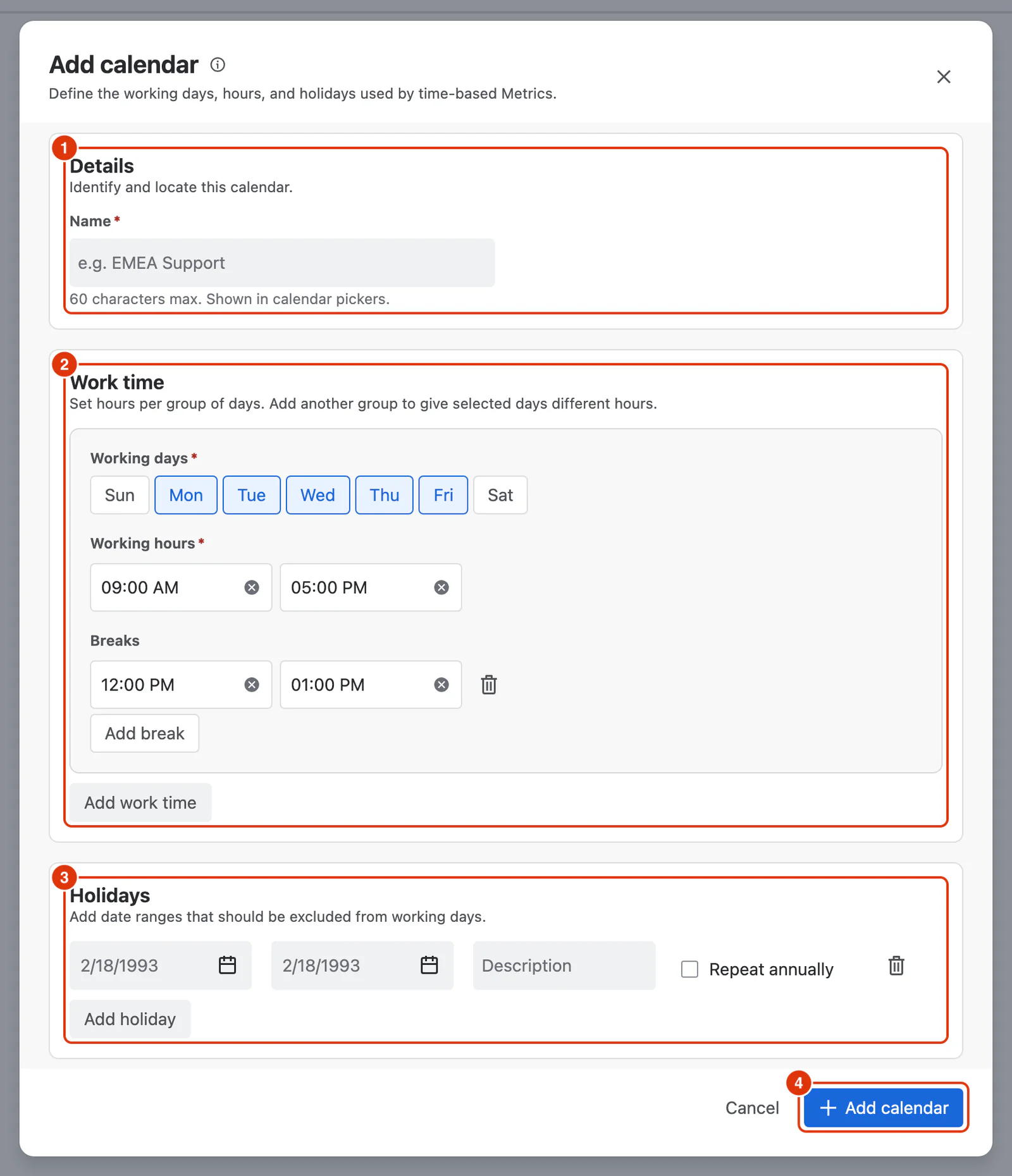
Details
Name (required) (1)
A clear label for the calendar. This name appears in calendar pickers when configuring time-based Metrics, so choose something descriptive (e.g. "EMEA Support", "US Engineering").
Maximum 60 characters.
Work time
A Work time entry (2) defines the working days, hours, and breaks for a specific set of days. Click Add work time (4) for multiple entries in the same calendar — each covering a different combination of days with its own hours and breaks.
This allows you to model complex schedules. For example:
- A Work Time entry for Monday to Friday with 09:00–17:00 hours and a lunch break
- A separate Work Time entry for Saturday with 09:00–13:00 hours and a short break
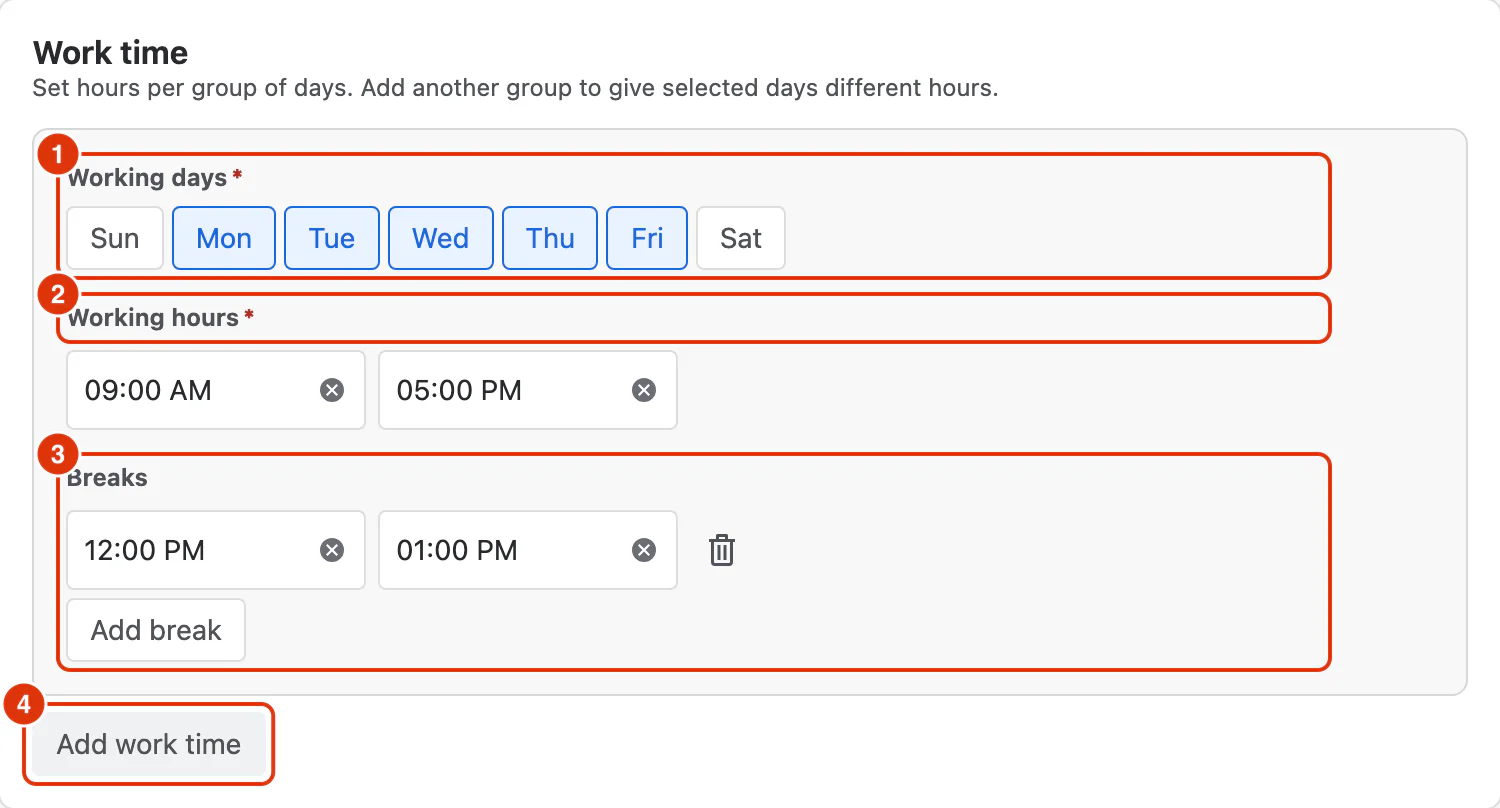
Each Work time entry has the following fields:
Working days
Working days (required) (1) — the days of the week this entry applies to, toggled with the day buttons (Sun to Sat). Selected days are highlighted.
Working hours
Working hours (required, local time) (2) — the start and end time of the working day for this entry.
Breaks
Breaks (3) — breaks to exclude from the working hours of this entry.
Click Add break to add one. Multiple breaks can be added per Work time entry — for example, a morning snack break and a lunch break. Each break has a start and end time. Breaks are subtracted from the total working hours when calculating durations.
Holidays
Holidays exclude date ranges from working time calculations. Work items in a time-based Metric do not count time on holiday dates.
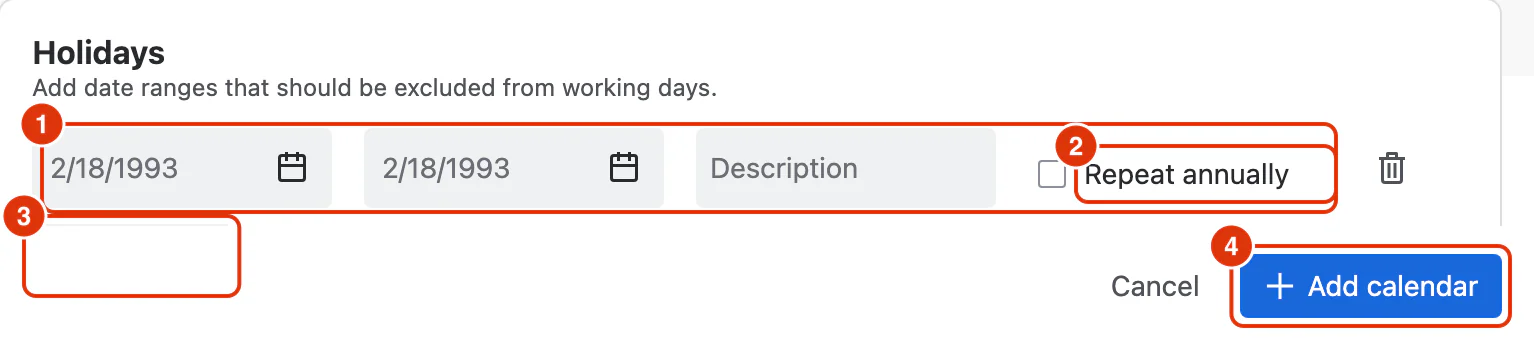
Each holiday row (1) has the following fields:
- From — the start date of the holiday, picked from the calendar.
- To — the end date of the holiday.
- Description — a label for the holiday (e.g. "Christmas Day", "Diwali").
- Repeat annually (2) — check this box if the holiday occurs every year. When enabled, the year portion of the date is ignored and the holiday is applied annually.
Click Add holiday (3) for another holiday; multiple holidays can be added to the same calendar. The trash icon at the end of a row removes it.
Actions
Add calendar (4) — creates the calendar. When editing an existing one, the same button reads Save changes.
Cancel — closes the dialog without saving any changes.
For guidance on applying calendars to Metrics, see Work Calendar Setup in the Settings & Administration section.