
Categorical Dimension Configuration
A categorical dimension's configuration panel opens when you click the Configure Dimension (⚙) icon on its chip in the Layout Designer. It is headed Configure, followed by the dimension's name — for example Configure Parent, Configure Status or Configure Space.
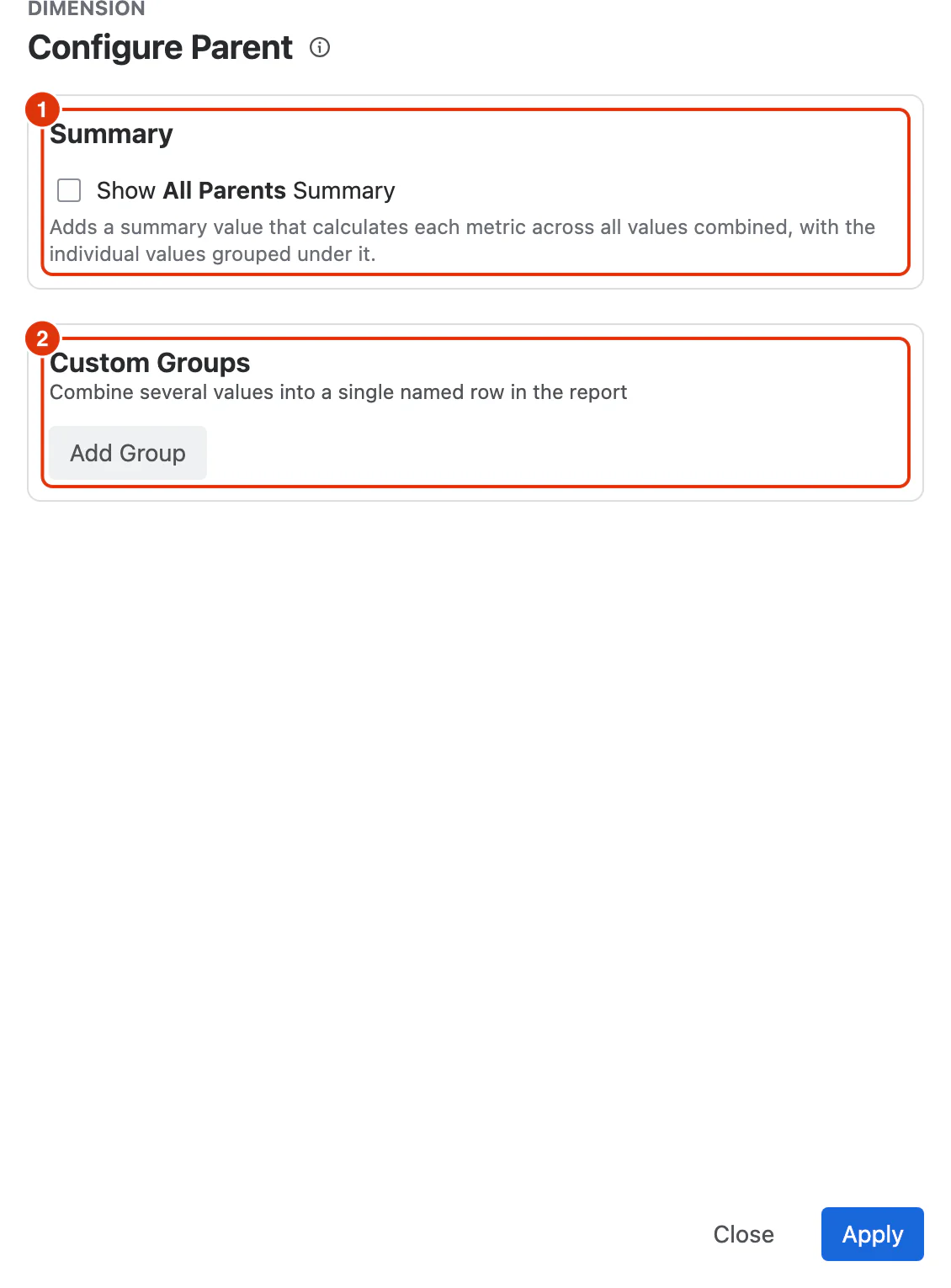
Summary
Show All Parents Summary (1) — the checkbox carries the dimension's own name, pluralised, so it reads Show All Statuses Summary for the Status dimension and Show All Spaces Summary for Space.
Ticking it adds a level to the report labelled All Parents, which groups every value of the dimension and shows their aggregated value (e.g. sum or average) — an overall total alongside the breakdown by individual value.
Custom Groups
Custom Groups (2) combine several values into a single named row in the report. This is useful for consolidating related values — for example, grouping multiple "In Progress" statuses into a single "Active" group.
Click Add Group, then give the group:
Summary name (required) — the label shown in the report for this group.
Values (required) — one or more dimension values to include in it.
Multiple groups can be created for the same dimension.
Actions
Apply — saves the configuration and closes the dialog.
Close — closes the dialog without saving any changes.
For a conceptual guide to dimension configuration and how it affects the report, see Configuring a Report in the Feature Guides section.