
Layout Designer
The Layout Designer is the first tab in the Configure Report dialog. It is where you place dimensions into zones to define how the report is structured.
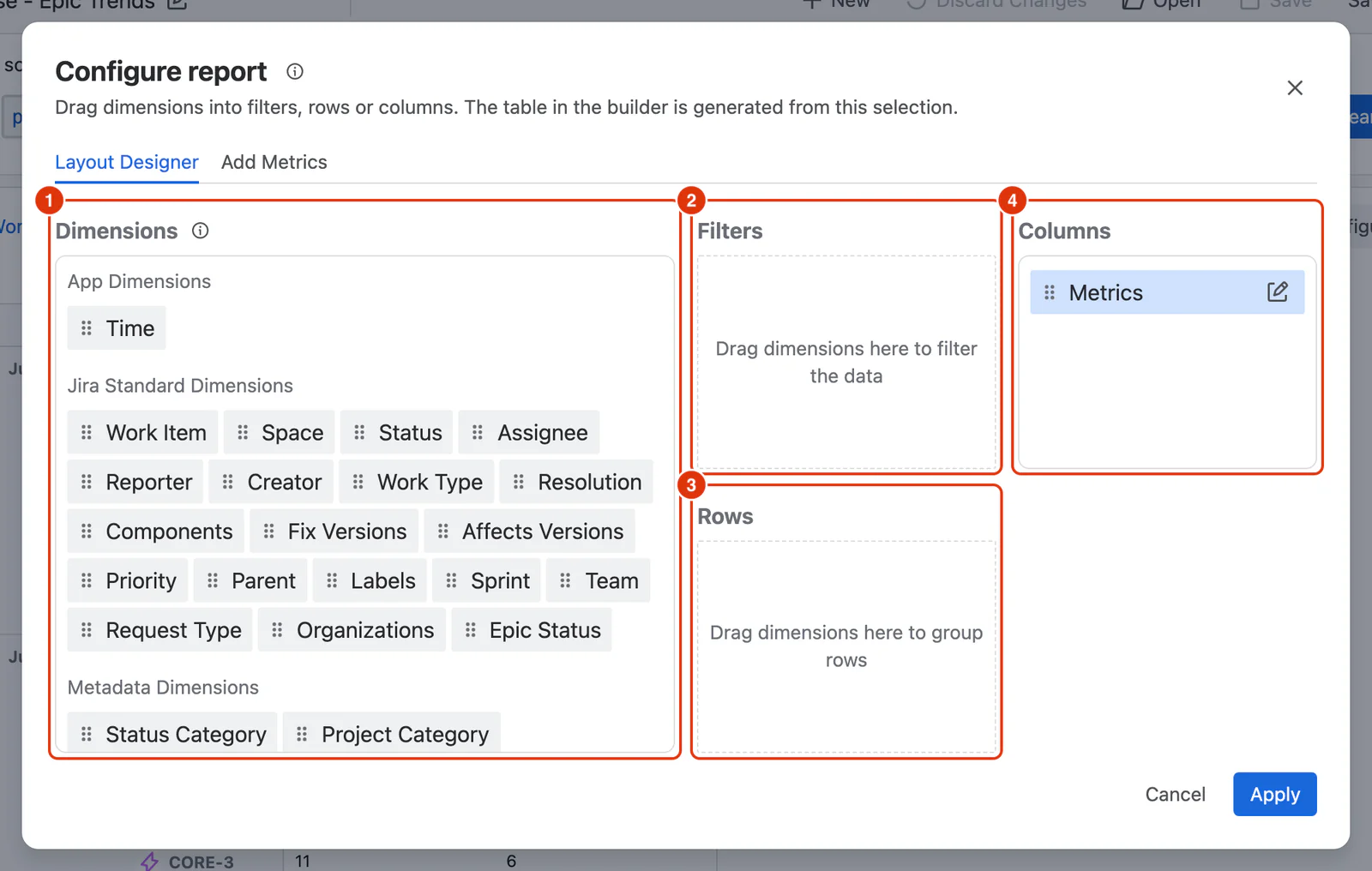
Dimensions Panel
The Dimensions panel (1) lists all available dimensions organised by category (App Dimensions, Jira Standard Dimensions, Metadata Dimensions, and Custom Field Dimensions). Drag any dimension from this panel into the Filters, Rows, or Columns zones.
See Dimensions in the Reference section for a full list of available dimensions.
Zones
Filters
Dimensions placed in Filters (2) appear as interactive filter chips above the report table. Users can select values from each filter to narrow the report results without changing the report structure.
Rows
Dimensions placed in Rows (3) define how data is grouped vertically. Each unique value of the dimension becomes a row in the report.
Columns
The Columns zone (4) always contains the Metrics block representing all selected Metrics. Dimensions can also be placed in Columns — each dimension value creates a separate set of columns, and Metrics are calculated at the intersection of each Row and Column value.
With dimensions placed, the zones show each one as a chip, and the report is built from them:
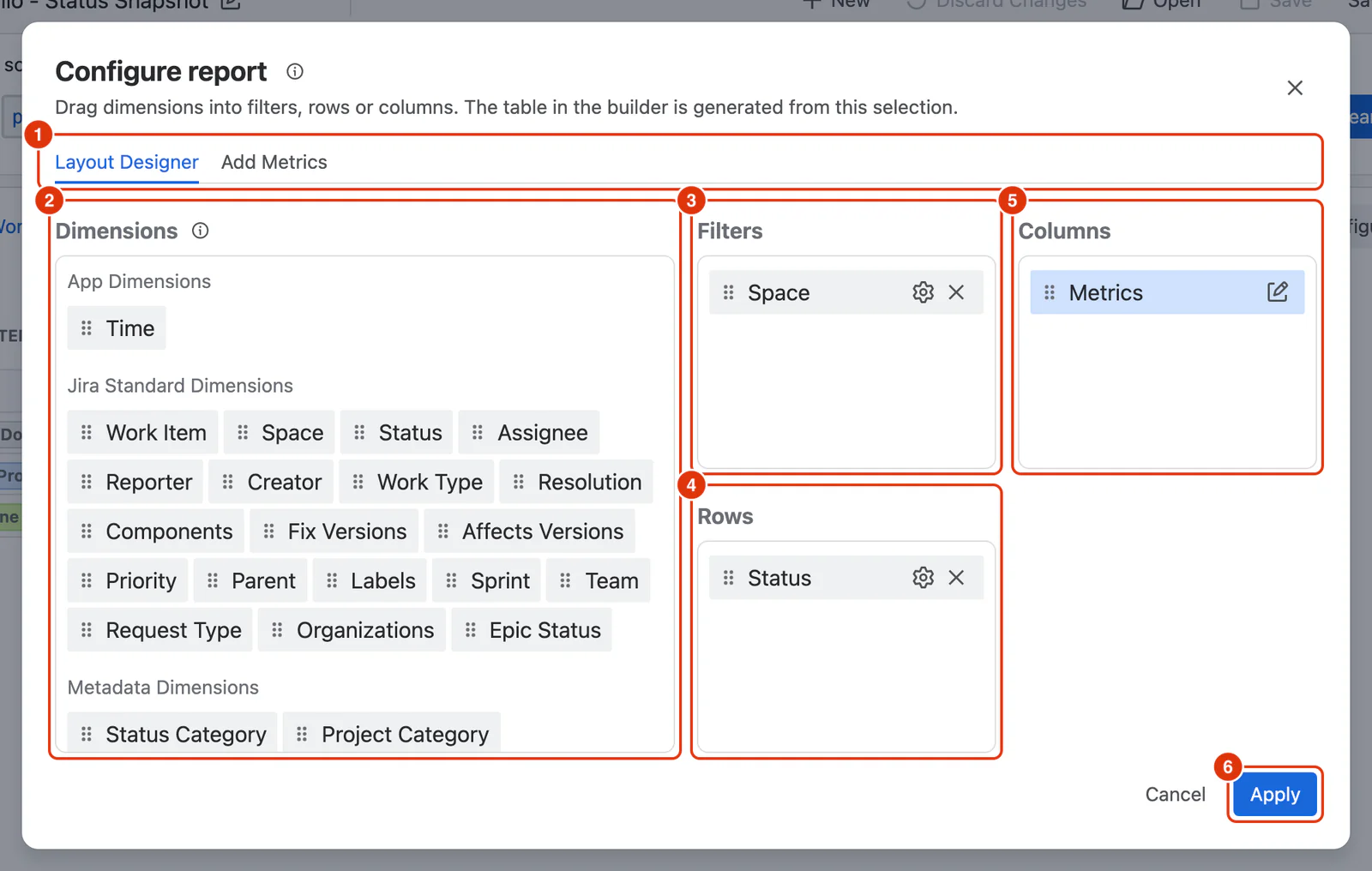
Placing and Managing Dimensions
- Drag a dimension from the Dimensions panel into any zone.
- Drag a dimension from one zone to another to reposition it.
- Reorder dimensions within a zone by dragging them into a different position.
- Configure a dimension by clicking the ⚙ icon — see Dimension Configuration for details.
- Remove a dimension from a zone by clicking the ✕ icon.
Multiple Dimensions in Rows or Columns
You can place more than one dimension in Rows or Columns. When multiple dimensions are placed in the same zone, the report shows the combination of their values as separate rows or columns. All dimensions are displayed at the same level — sibling dimensions appear side by side.
For example, placing Project and Assignee in Rows shows every combination of project and assignee as individual rows in the report.
Dimension Instances Across Zones
A dimension can appear in more than one zone simultaneously. The rules are:
- A dimension can only appear once across Rows and Columns combined.
- A dimension can appear in Filters even if it is already in Rows or Columns.
- When a dimension appears in more than one zone, all instances share the same configuration. Changing the configuration of one instance applies to all.
For a conceptual guide to using the Layout Designer, see Configuring a Report in the Feature Guides section.