
Using Templates
Templates are pre-built reports for common analytics patterns, available on the Home screen. They are a fast way to get started without having to configure a report from scratch — each template comes with a pre-configured layout, dimensions, and Metrics already set up for a specific use case.
Dashlytics includes a growing library of templates covering common analytics patterns. For a full list of available templates and their configurations, see Templates.
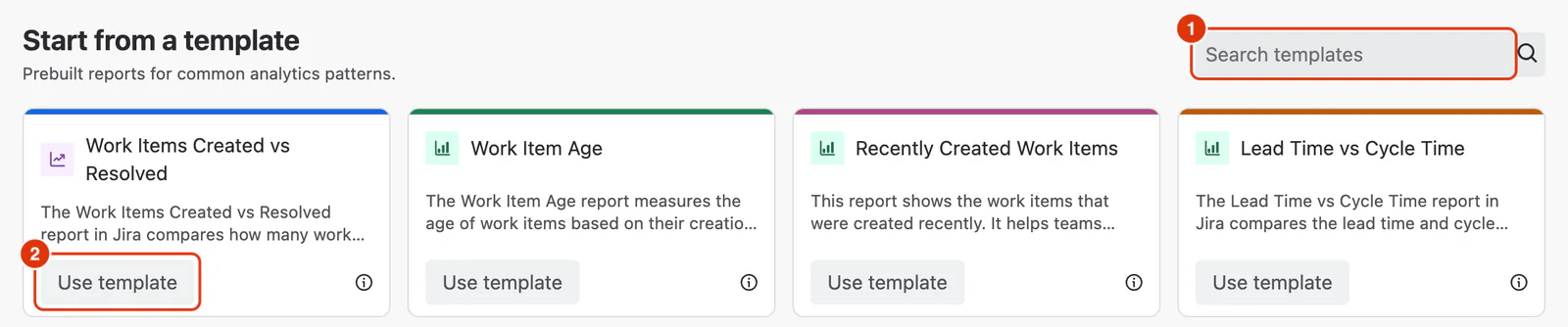
Using a Template
- Go to Apps → Dashlytics in the Jira left sidebar, then click Home in the Dashlytics navigation.
- In the Templates section, browse the available templates and find one that matches your use case.
- Click Use template — the Report Builder opens with the template's dimensions and Metrics pre-configured. The data source is set to a hardcoded default to give you an immediate preview of the report structure.
- Review the report as-is, or customise it:
- Update the Data source JQL to target your own projects and issues.
- Adjust dimensions in the Configure dialog — add, remove, or reposition them as needed.
- Add, remove, or reconfigure Metrics in the Add Metrics tab.
- Click Save as to save the report as your own — enter a name and optional description.
Note
Note: Templates cannot be edited or deleted. Any changes you make are only saved when you use Save as to create your own copy. The original template remains unchanged.
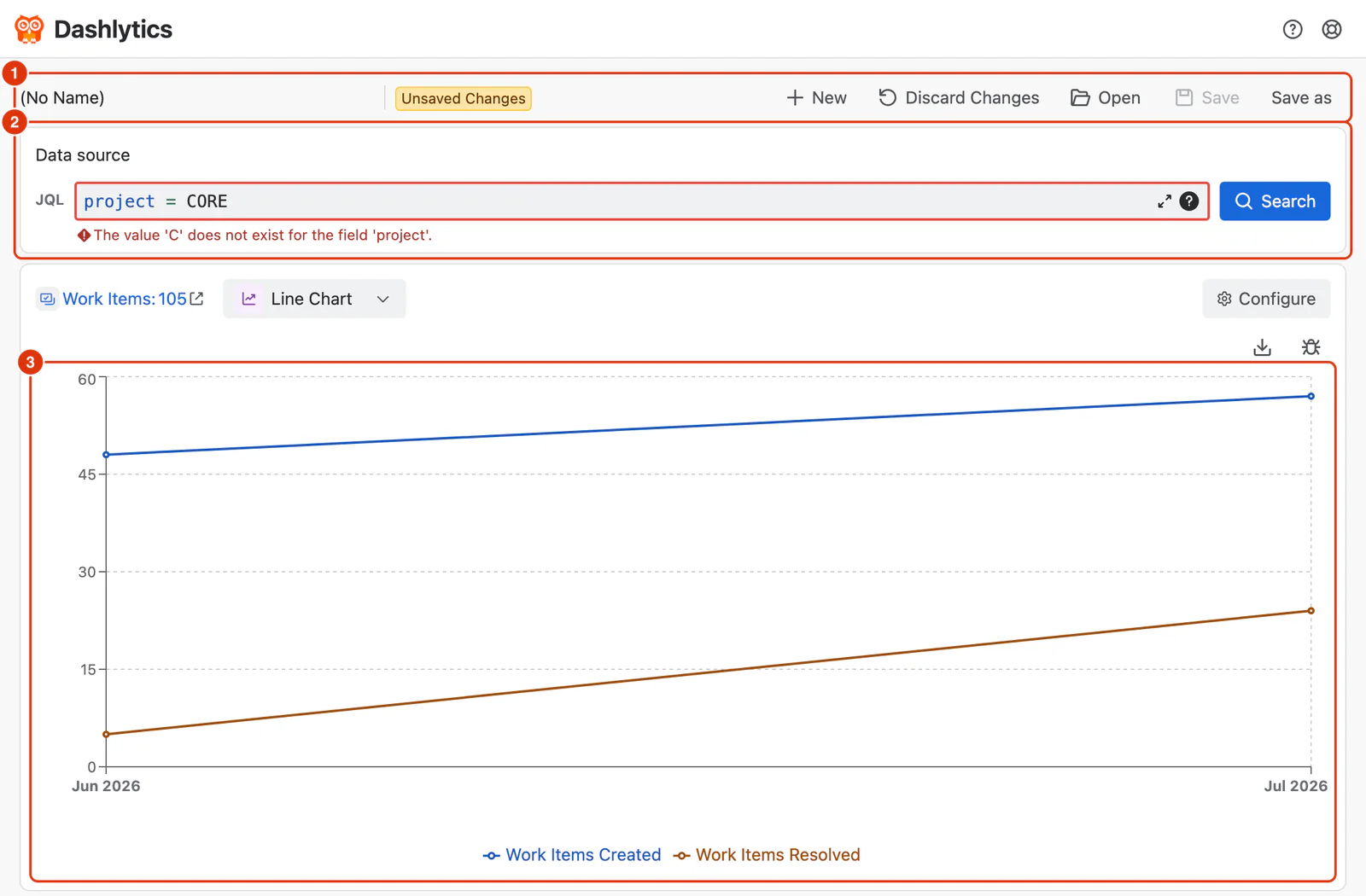
UI Reference
For a detailed breakdown of the Templates section on the Home screen, see Home in the Dashlytics UI Guide.