
App Configuration
Before your team starts building reports, two configuration steps are required to ensure Dashlytics calculates Metrics correctly across your Jira projects. Both are done on the Report options tab of App Settings and only need to be set up once. To open it, go to Jira settings → Marketplace apps, then click App Settings under Dashlytics in the sidebar.
Change any field on that screen, then click Save changes.
Lifecycle Mapping
What is Lifecycle Mapping?
Jira's built-in status categories — To Do, In Progress, and Done — are not always precise enough to reflect how work actually moves through a team's workflow. For example, a work item marked Done might mean the work is finished, it might be waiting for a release, or it might have been closed without any work being done at all.
Lifecycle Mapping solves this by letting you define exactly what each status means in terms of delivery. Instead of relying on Jira status categories, Dashlytics maps your Jira statuses to three lifecycle states that Metrics use for calculation. Each field lists the statuses mapped to that state; remove a status with its ×, or add one from the dropdown.
Note: Lifecycle Mapping works by status name, not status ID. This is intentional — the same status name can have different IDs across projects, both in Company-managed and Team-managed projects. Mapping by name ensures a status like "In Progress" is treated consistently across all your projects without needing to select each project's version individually.
The Three Lifecycle States
The three fields sit together in the Lifecycle mapping card: Active status (1), Completed status (2) and Closed status (3).
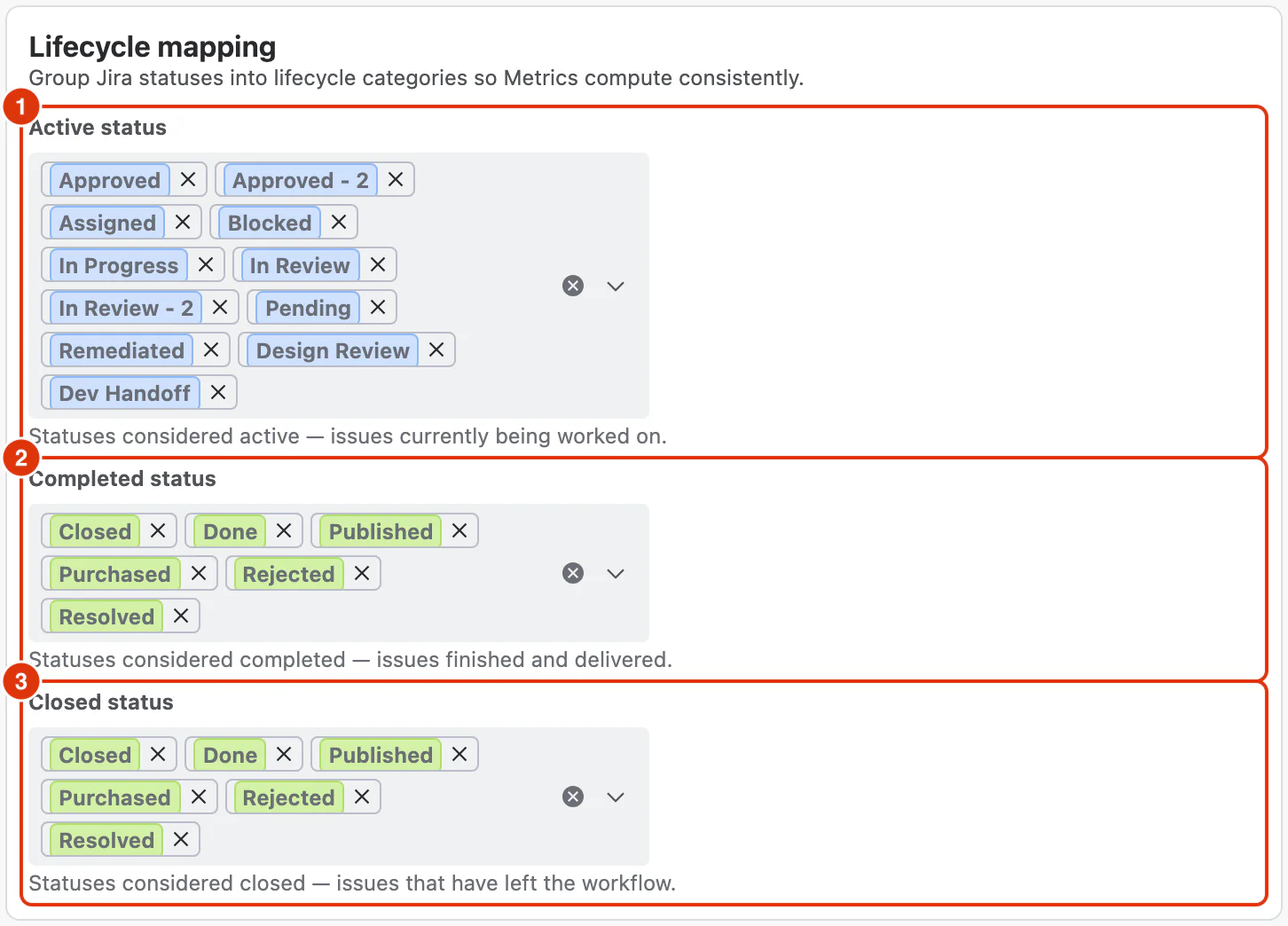
Active
Statuses mapped to Active (1) represent work where effort is actively being applied — meaning someone is actually working on the work item right now. A status should only be Active if the work item is genuinely in motion, not simply waiting or on hold.
Default: All statuses in the Jira In Progress status category.
Completed
Statuses mapped to Completed (2) represent work where delivery is finished. The work is done, but the work item may not yet be administratively closed — for example, it may be waiting for customer confirmation or the next release cycle.
Default: All statuses in the Jira Done status category.
Closed
Statuses mapped to Closed (3) represent the formal end of a work item's lifecycle. This is the administrative close — when a work item is fully finished and will not be revisited.
Default: All statuses in the Jira Done status category.
When calculating Metrics, Dashlytics treats Closed as a subset of Completed — every Closed work item is also considered Completed. This means completion is a permanent historical fact: once a work item reaches a Completed status, it remains Completed even after transitioning to Closed. Note that in the UI, you still select statuses independently for each lifecycle state. This rule applies only to how Metrics interpret the lifecycle, ensuring delivery metrics remain stable and consistent.
When to Customise Lifecycle Mapping
The defaults work well for most teams. Consider customising when:
- Your workflow has a distinct "Ready for Release" or "Awaiting Confirmation" status that should be treated as Completed but not yet Closed.
- You use Jira Service Management. Statuses like "Waiting for Customer" or "Pending" are placed in the In Progress category by Jira but represent a hold state where no active work is happening. These should be removed from the Active mapping so that Metrics such as cycle time and work-in-progress counts reflect only time where work was genuinely being done.
Story Point Mapping
Why Story Point Mapping Exists
Jira uses two different fields for story points depending on the project type:
- Company-managed projects use the Story Points field.
- Team-managed projects use the Story point estimate field.
This split makes it impossible to build a unified story point report across both project types without additional configuration. Story Point Mapping resolves this by letting you pick which number field represents story points for Company-managed projects (1) and for Team-managed projects (2). Dashlytics then uses this mapping consistently as the Story Points value across all reports.
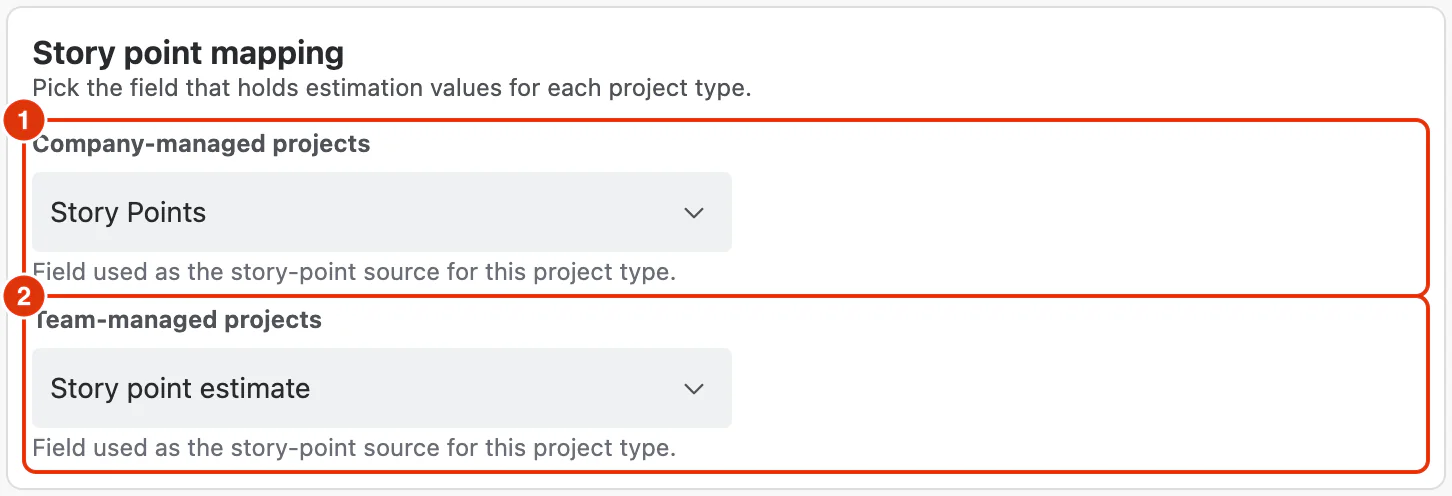
Default Mapping
The defaults work for most Jira instances. You only need to change them if your team uses a custom number field for story points instead of the Jira standard fields.
When to Customise Story Point Mapping
- Your team uses a custom field (e.g., "Effort Points" or "Size") instead of the standard Jira story point fields.
- You want both project types to use the same field for consistency.