
Time Spent by Status and Assignee
This report shows the total time each assignee spent in every work item status. It helps managers and team leads understand where time is being spent across the workflow and whether certain people or statuses are creating delays.
Start a report
- Go to Apps → Dashlytics in the Jira left sidebar, then click Home.
- Click Open Builder, then New in the toolbar, to start from a blank report.
- In the Data Source section, enter a JQL query to scope the work items — for example:
project is not EMPTY. Click Search. - Click the Configure button to open the Configure report dialog.
Lay out the report
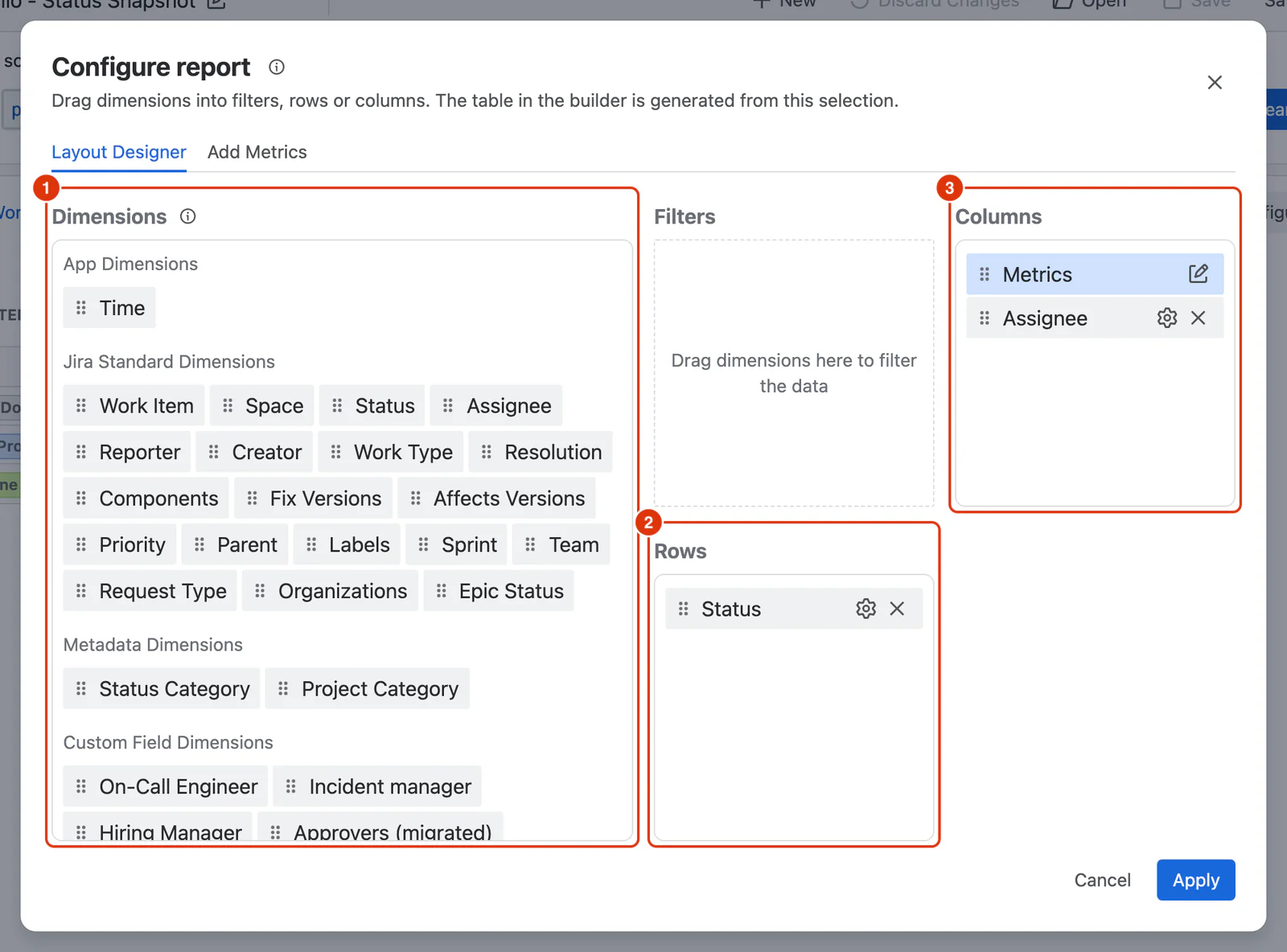
- In the Layout Designer tab, drag Status from the Dimensions list (1) into the Rows zone (2), so each status becomes a row.
- Drag Assignee into the Columns zone (3), beside the Metrics block — each assignee then gets a column.
Add the Metric
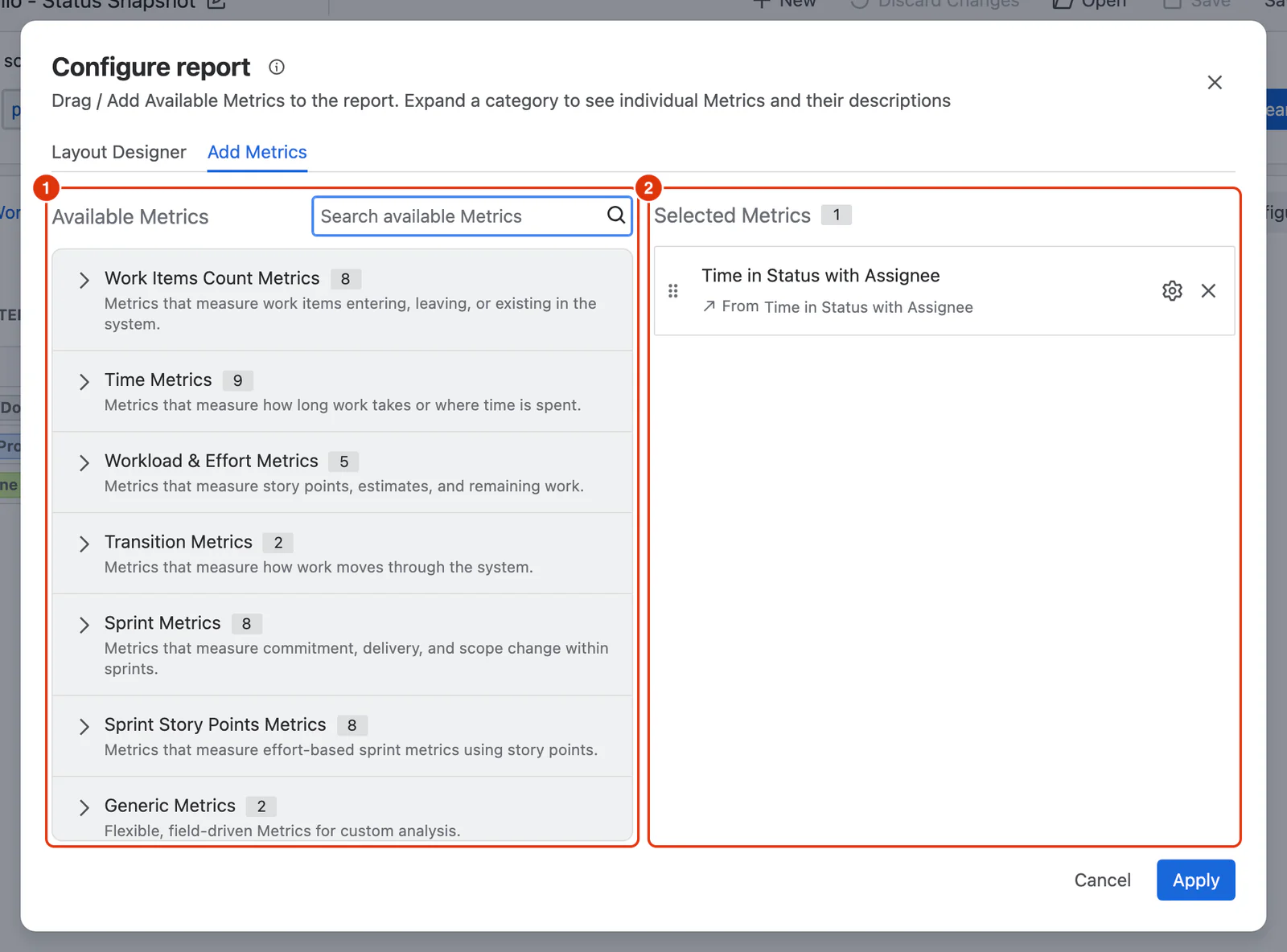
- Go to the Add Metrics tab. In Available Metrics (1), expand Time Metrics and click + Add on Time in Status with Assignee. It appears under Selected Metrics (2).
- Click the ⚙ icon on the added Metric, configure it as follows, then click Apply in the panel:
- Set Selection Mode to Use Status and Assignee dimension values, so time is calculated for each visible Status × Assignee combination.
- Set Aggregation to Sum.
- Optionally, select a Work Calendar to apply working hours to the calculation.
- Click Apply to close the dialog and render the report.
- Click Save as in the toolbar, enter a report name, and click Save report.
Tip
For every setting on a Metric, see Metric Configuration.
Result
Each row is a status and each column an assignee, so a cell reads as "how long this person's work sat in this status".
